 EirLink
An Post rejected your API key
Almost always one setting, and it takes a minute to change.
If EirLink says An Post rejected your key, the key itself is usually fine. Nine times out of ten the account has an IP whitelist turned on, and that is what An Post is refusing.
Why it happens
EirLink creates your labels from its own servers. When a whitelist is selected in eCommHub, An Post accepts your key only from those IP addresses and turns away every other request. From EirLink's side that comes back looking exactly like a bad key, which is all we can report at the time.
The fix
- Log in at ecommhub.anpost.com.
- Open the page called External Connections To The System.
- Find the API Settings section, just under your API key.
- Untick Use Whitelist, so that no whitelist is selected.
- Save the page.
- Come back to Settings, then the Carriers tab, paste your key again and press Verify & save.
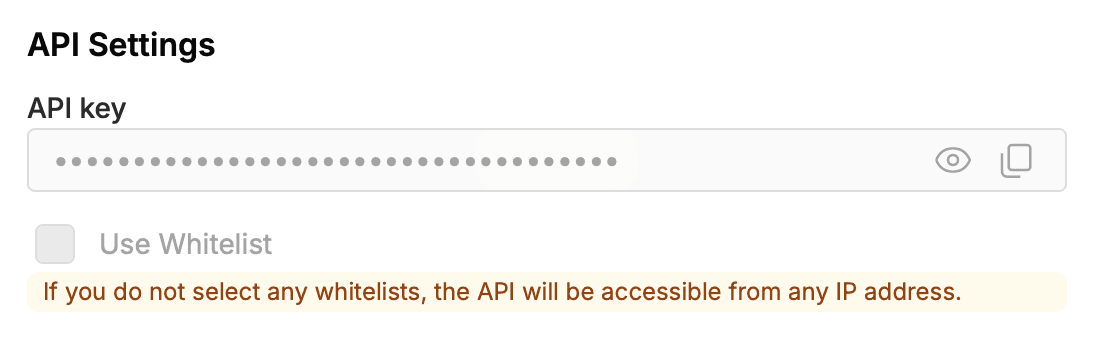
If you cannot untick it
On some accounts the box is greyed out, or the page will not hold the change. That is set on An Post's side and only they can lift it. Email your An Post account manager and ask them to remove the IP whitelist from your eCommHub API key so it can be used from an integration. They normally have it done within 24 hours.
Something like this works:
Could you please turn off the IP whitelist on our eCommHub API key? We are connecting a shipping integration and it needs to reach the API from outside our office.
Once they confirm it is off, paste your key into EirLink again. Nothing else on your side needs to change.
Still rejected with the whitelist off
Rarer, but worth checking in this order:
- The key was copied short. Copy it again from eCommHub and make sure you have the whole thing.
- The key was regenerated in eCommHub after you copied it. Regenerating kills the old key, so paste the new one.
- Under API Limits, Booking or Other is blank or 0. Set both to something sensible like 60.
- Label type is not set to API.
- API access was never switched on for the account. Your An Post account manager can confirm that.
If none of that does it, email us at contact@eirlink.ie and we will get to the bottom of it with you.