 EirLink
Set up your Shopify products for shipping
Weights, HS codes and box sizes. Five minutes, once.
When EirLink imports an order it copies the weight and HS code of every product straight from Shopify. Fill those in once on your products and your labels and customs declarations come out right on their own. Leave them blank and EirLink has to guess, because An Post rejects a parcel with no weight and no commodity code.
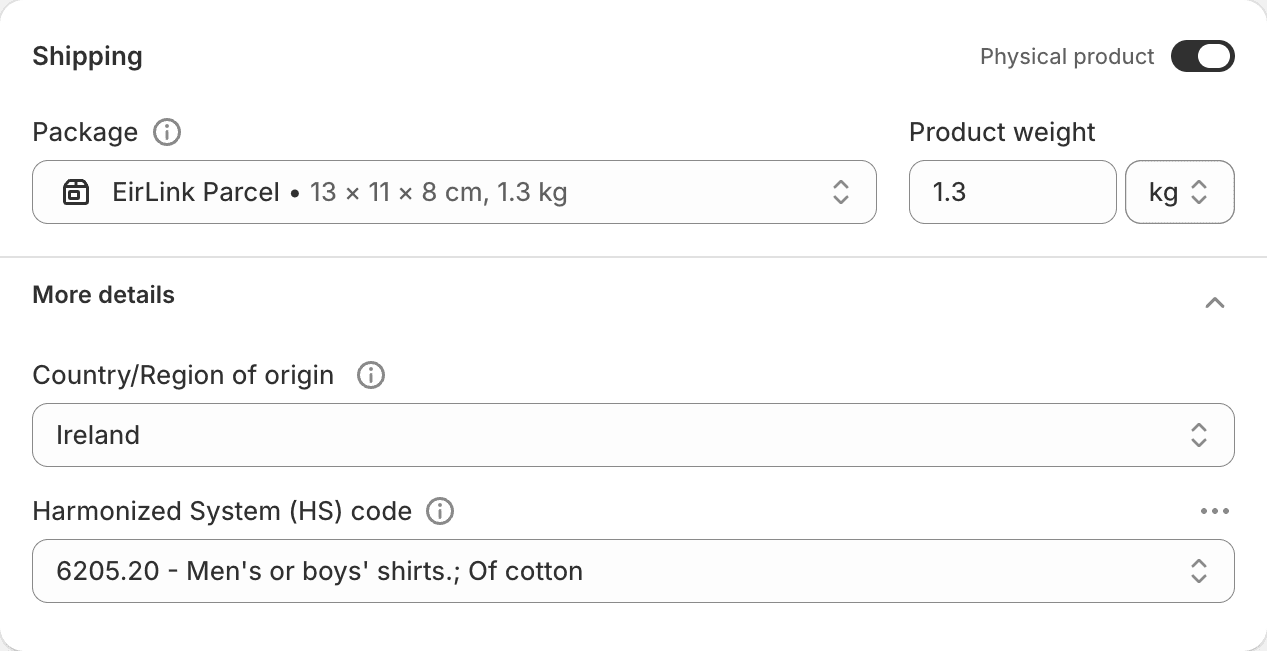
It all lives in one place. Open a product in Shopify, open the variant, and the Shipping section looks like this once it is filled in.
Weight
In Shopify: Products, open the product, open the variant, then the Shipping section. Weight sits there, on each variant, not on the product as a whole.
- EirLink adds up every item on the order, weight times quantity, to get the parcel weight.
- If an item has no weight, EirLink falls back to 0.1 kg, the smallest An Post accepts. A 2 kg parcel declared at 0.1 kg can be surcharged by An Post or held.
- Put the item's own weight in Shopify. You can bump the total up on the label screen before printing if the box and filler add much.
EirLink warns you before printing when an order has items with no weight, so you can see what is missing without going hunting.
HS code
Same variant, same Shipping section, under More details. The HS code is the commodity code customs uses to work out duty.
- It matters on anything leaving the EU: UK, US, Canada, Australia and so on. Parcels inside the EU do not need one.
- Six digits is the minimum. Eight is common and more precise.
- Look yours up in the EU TARIC tool or on Revenue's classification pages.
This one is worth doing properly. An Post will not accept a customs line with no commodity code, so when the field is blank EirLink sends a placeholder code of 847130. That code is not your product. It can mean the wrong duty charged to your customer, or the parcel stopped at the border. Ten minutes filling in real codes saves that.
Country of origin
Shopify has a Country/region of origin field beside the HS code. EirLink does not read it yet and declares Ireland as the origin on every item. If you ship goods made outside Ireland, email us at contact@eirlink.ie before you send them and we will sort the declaration with you.
Box size
The Package box in the screenshot above carries dimensions, but that belongs to Shopify's own rate quotes and EirLink does not import it. Every EirLink label starts at 15 by 15 by 10 cm and you change length, width and height on the label screen before printing. Measure the packed box, not the product.
Filling it in for a lot of products at once
- In Shopify go to Products and tick the products you want.
- Press Edit products to open the bulk editor.
- Add columns for Weight, HS code and Country/region of origin.
- Fill them in down the grid and save.
Much faster than opening every product one at a time.
Orders already in EirLink
EirLink stores the weight and HS code on the order at the moment it imports, so fixing a product in Shopify does not change orders that are already here. After you update your products, open Settings, then Integrations and press Re-import on the store. Orders you have not labelled yet pick up the new values. Orders that already have a label keep what they had.
CSV and manual orders
Orders that do not come from Shopify carry the same fields. A CSV import takes an item_weight_kg column and an hs_code column, and both are on the manual order form. The same rules apply: blank weight ships at 0.1 kg, blank HS code sends the placeholder.